
Label Configuration
Section Purpose:
This documentation describes how to configure labels generated when creating orders from prescriptions. These settings affect the appearance and functionality of printed labels.
Basic Information
Section titled “Basic Information”Labels are printed when creating orders from prescriptions by physicians with appropriate permissions. They contain information about medications, patient, and pharmacy data.
Label configuration allows selecting the type of code that will be generated on labels.
Each label configuration has the following properties:
Section titled “Each label configuration has the following properties:”- Barcode Type Required – type of code that will be printed on labels. Available options:
- QR Code – two-dimensional QR code, popular and easy to read with smartphones
- Aztec – two-dimensional Aztec code, more compact and damage-resistant
- Data Matrix – two-dimensional Data Matrix code, space-efficient and distortion-resistant
- Code39 – one-dimensional linear code, traditional and universal
View in Application
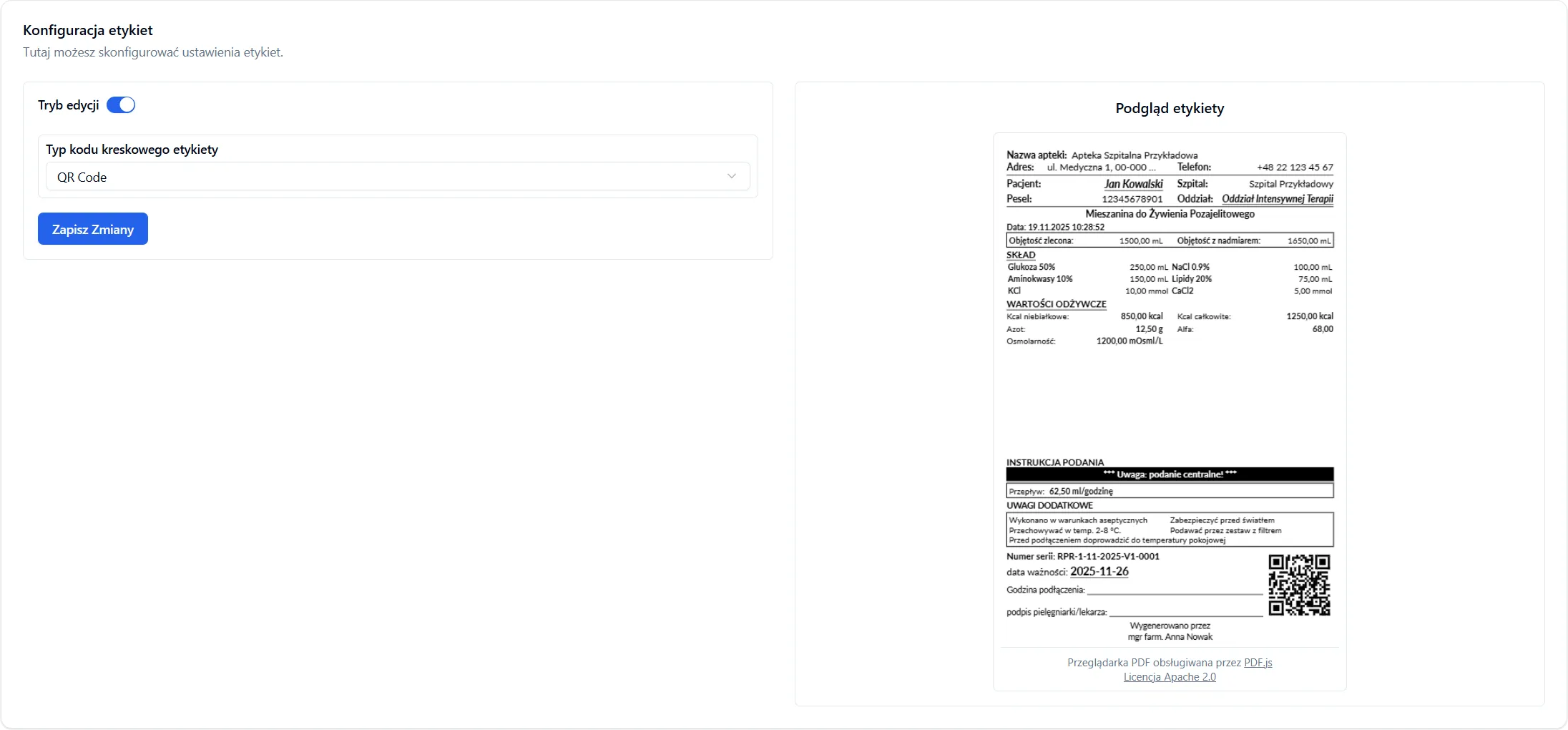
Section titled “View in Application”In the label configuration view, a form with a dropdown list is available where you can select the preferred barcode type. Next to the form, a preview of a sample label with the selected code type is displayed, allowing you to evaluate the appearance before saving settings.
Frequently Asked Questions
Section titled “Frequently Asked Questions”What device can I use to read the code on the label?
Device type depends on the selected code:
- QR Code – smartphone, tablet, or dedicated scanner
- Aztec – 2D scanner or device supporting Aztec code
- Data Matrix – 2D scanner or industrial camera
- Code39 – any traditional barcode scanner
Can I change the code type after I’ve already generated labels?
Yes. Changing the code type will affect all new labels generated after changing settings. Previously generated labels will contain the old code type.
Does the code on the label contain all order data?
The code contains the .PAT file name along with checksum, which enables compounders to scan the code and automatically find the appropriate order file in the system. This eliminates manual data entry – the compounder scans the code, and the system automatically identifies and loads order data (patient, medication, dosage, etc.).