
Group Permissions
Part of User Groups documentation
Section Purpose: This documentation explains how to define permissions for a user group. Permissions determine what actions group members can perform – what they can view, create, edit, and delete in the system.
What Are Permissions?
Section titled “What Are Permissions?”Permissions are access rights to individual functions and operations in the system. For each function (e.g., “User Management”, “Prescription Management”) you can specify whether group users can perform the following operations:
- All – checking this checkbox automatically grants all permissions below
- Create – add new records
- Read – view data
- Update – change existing data
- Delete – delete records
Example: For the “Prescription Management” function you can set that a Physician can: create prescriptions (Create), view them (Read), and edit (Update), but cannot delete them (Delete).
Viewing Group Permissions
Section titled “Viewing Group Permissions”- Go to the Users → Groups section in the main menu.
- Select a group from the list.
- Click the “Permissions” tab.
- You’ll see a list of all available functions in the system with the ability to assign permissions.
How to Set Permissions?
Section titled “How to Set Permissions?”Permission Structure
Section titled “Permission Structure”Each function in the system has its permissions represented by checkboxes:
| Function | All | Create | Read | Update | Delete |
|---|---|---|---|---|---|
| User Management | ☐ | ☐ | ☐ | ☐ | ☐ |
| Group Management | ☐ | ☐ | ☐ | ☐ | ☐ |
| Prescription Management | ☐ | ☐ | ☐ | ☐ | ☐ |
| Organizational Structure Mgmt | ☐ | ☐ | ☐ | ☐ | ☐ |
Step by Step: Setting Permissions
Section titled “Step by Step: Setting Permissions”-
On the Permissions tab, find the function for which you want to set permissions (e.g., “Prescription Management”).
-
Check the appropriate checkboxes:
- All – will automatically check all operations below
- Create – allows creating new prescriptions
- Read – allows viewing prescriptions
- Update – allows editing prescriptions
- Delete – allows deleting prescriptions
-
Repeat the process for each function you want to configure.
-
After setting all permissions, click the “Save changes” (or “Update”) button.
-
Changes will be immediately available to all group members.
Practical Examples
Section titled “Practical Examples”Example 1: “Physicians” Group
Section titled “Example 1: “Physicians” Group”Physicians can view and edit prescriptions, but cannot delete them:
| Function | All | Create | Read | Update | Delete |
|---|---|---|---|---|---|
| Prescription Management | ☐ | ☑ | ☑ | ☑ | ☐ |
Example 2: “Administrators” Group
Section titled “Example 2: “Administrators” Group”Administrators have full access to all functions:
| Function | All | Create | Read | Update | Delete |
|---|---|---|---|---|---|
| User Management | ☑ | ☑ | ☑ | ☑ | ☑ |
| Group Management | ☑ | ☑ | ☑ | ☑ | ☑ |
| Prescription Management | ☑ | ☑ | ☑ | ☑ | ☑ |
| Organizational Structure Mgmt | ☑ | ☑ | ☑ | ☑ | ☑ |
Example 3: “Reception” Group
Section titled “Example 3: “Reception” Group”Reception can only view prescriptions:
| Function | All | Create | Read | Update | Delete |
|---|---|---|---|---|---|
| Prescription Management | ☐ | ☐ | ☑ | ☐ | ☐ |
View in Application
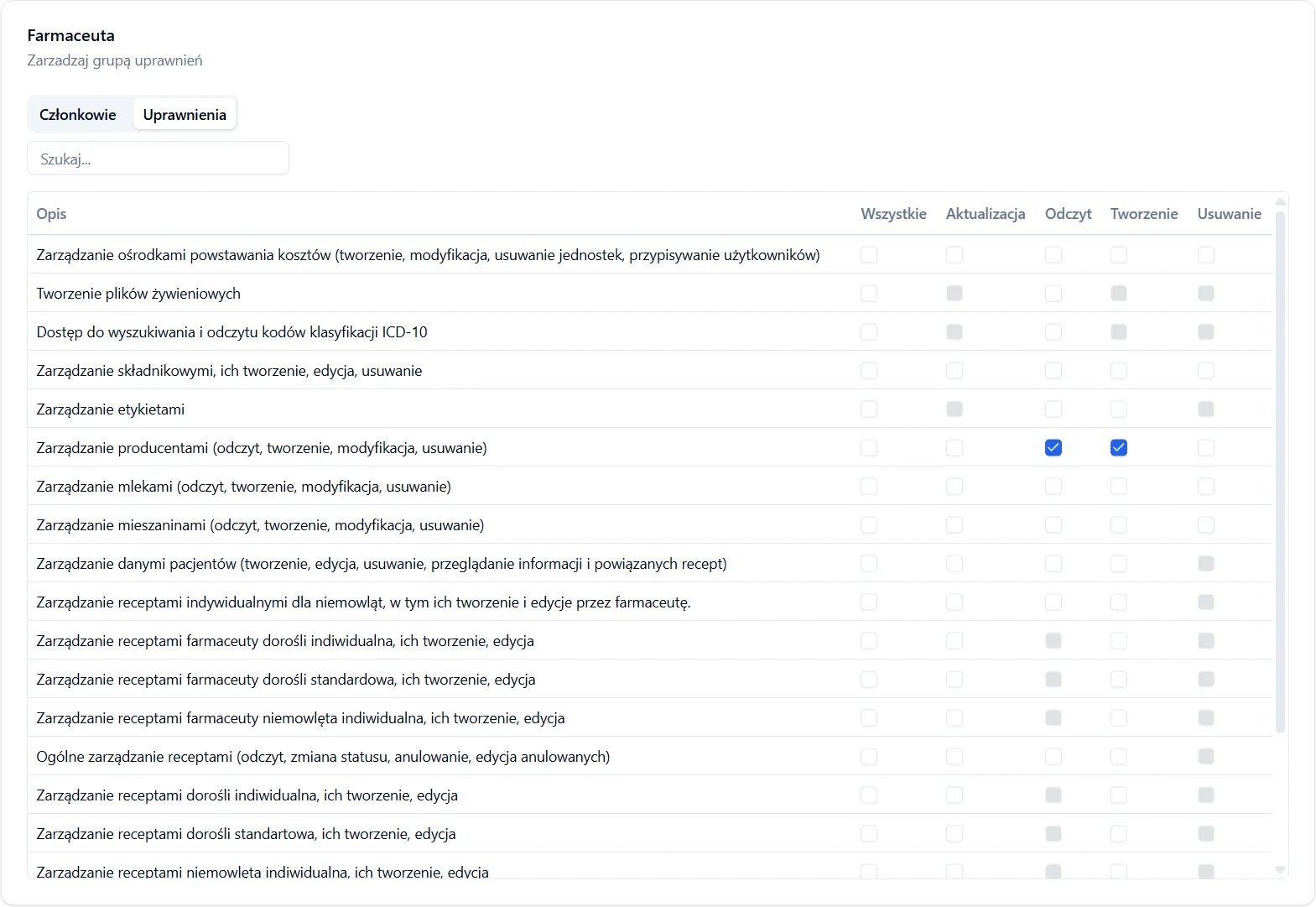
Section titled “View in Application”On the Permissions tab you’ll see:
- List of all available functions in the system
- For each function four columns with checkboxes: Create, Read, Update, Delete
- “Save changes” button to confirm changes
- Ability to check and uncheck permissions for each function
Important Information
Section titled “Important Information”-
Permission changes affect all members – if you change group permissions, all users in this group will automatically receive new permissions.
-
User can belong to multiple groups – if a user belongs to multiple groups, they will have permissions from all groups. They combine (add up).
-
Minimum permissions – always assign only those permissions that are really needed. It’s safer and more controlled.
-
Viewing without editing – if you check only “Read”, the user will be able to view data but won’t be able to change or delete it.
Frequently Asked Questions
Section titled “Frequently Asked Questions”Can I set permissions for an individual user?
No – permissions are always set at the group level. Each user must be assigned to at least one group to have any permissions.
What should I do if a user has too many permissions?
Remove the user from the group that gave them too much access. You can assign them to another group with more limited permissions.
Is a group permission change immediate?
Yes – group permission changes are immediately available to all group members.
Tip: Regularly review group permissions to ensure they are current and consistent with actual employee roles in the organization. Always assign permissions with the principle of least required permissions – i.e., only as much as is really needed.