
User Groups
This documentation describes how to manage user groups in the system. Groups allow easy assignment of permissions to multiple users simultaneously, without having to configure each one separately. This makes system administration faster and more efficient.
Basic Information
Section titled “Basic Information”User groups are sets of permissions that can be assigned to multiple users at once. Instead of granting permissions to each user individually, you assign them to a group – and they automatically receive all permissions of that group.
Example: If you create a “Pharmacists” group, each user assigned to this group will have access to all functions intended for pharmacists.
What can you do with groups?
Section titled “What can you do with groups?”- Add new groups
- Edit the name of an existing group
- Delete groups (if they have no assigned users)
- Manage members – assign and remove users from the group
- Manage permissions – define what actions group members can perform
Group Structure
Section titled “Group Structure”Each group has two tabs:
On this tab you manage users assigned to the group. You can:
- Browse the list of people in the group
- Add new users to the group
- Remove users from the group
On this tab you define what users from this group can do. For each function in the system, you can set whether users can: view data, create new records, edit existing ones, or delete them.
Creating a New Group
Section titled “Creating a New Group”- Go to the Users → Groups section in the main menu.
- Click the “Add group” button.
- Provide the group name (e.g., “Physicians”, “Pharmacists”, “Reception”).
- Confirm with the “Save” button.
- The new group will appear on the list and be ready for configuration.
View in Application
Section titled “View in Application”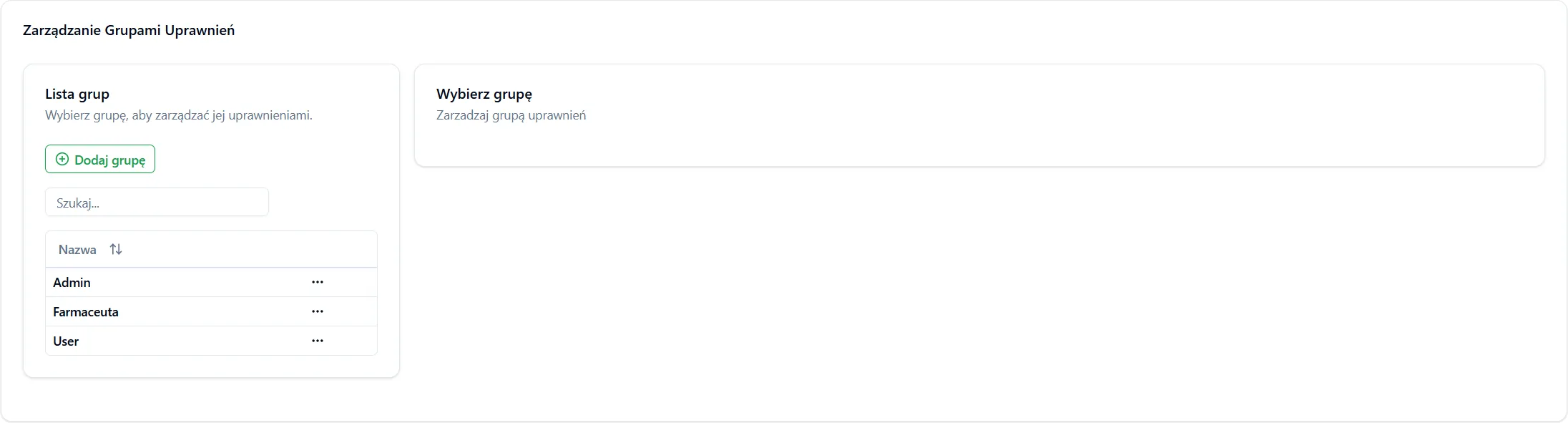
How Does It Work in Practice?
Section titled “How Does It Work in Practice?”Here’s a sample workflow:
- Administrator creates a group “Physicians” and sets its permissions (right to view and edit prescriptions).
- Administrator assigns to the group three physicians: Dr. Nowak, Dr. Kowalski, and Dr. Wiśniewska.
- All three physicians automatically receive permissions from the “Physicians” group – they can view and edit prescriptions.
- If permissions need to be changed, the administrator changes them once at the group level – and automatically all group members have new permissions.