
User Management
Section Purpose:
This documentation describes how to manage users in the system – from creating and editing accounts, assigning roles and permissions, to deactivating users. This allows administrators to effectively manage system access.
Basic Information
Section titled “Basic Information”Each user has an individual account that enables logging into the system and using assigned functionalities. User permissions result from the group to which they are assigned. Additionally, the user is associated with the organizational structure.
Each user has the following properties:
Section titled “Each user has the following properties:”- First and Last Name Required – data identifying the user.
- Email (login) Required – user’s email address, which also serves as login to the system.
- Group Configurable – determines user permissions in the system (e.g., Administrator, Physician, Pharmacist).
- Account Status Active/Inactive – information whether the user account is active and allows logging in.
- Email Verification Status Verified/Unverified – information whether the user’s email address has been confirmed.
Sample User List
Section titled “Sample User List”| First and Last Name | Email (login) | Account Status | Email Verification Status |
|---|---|---|---|
| Anna Nowak | anna@example.com | Active | Verified |
| Jan Kowalski | jan@example.com | Active | Verified |
| Maria Wiśniewska | maria@example.com | Active | Unverified |
View in Application
Section titled “View in Application”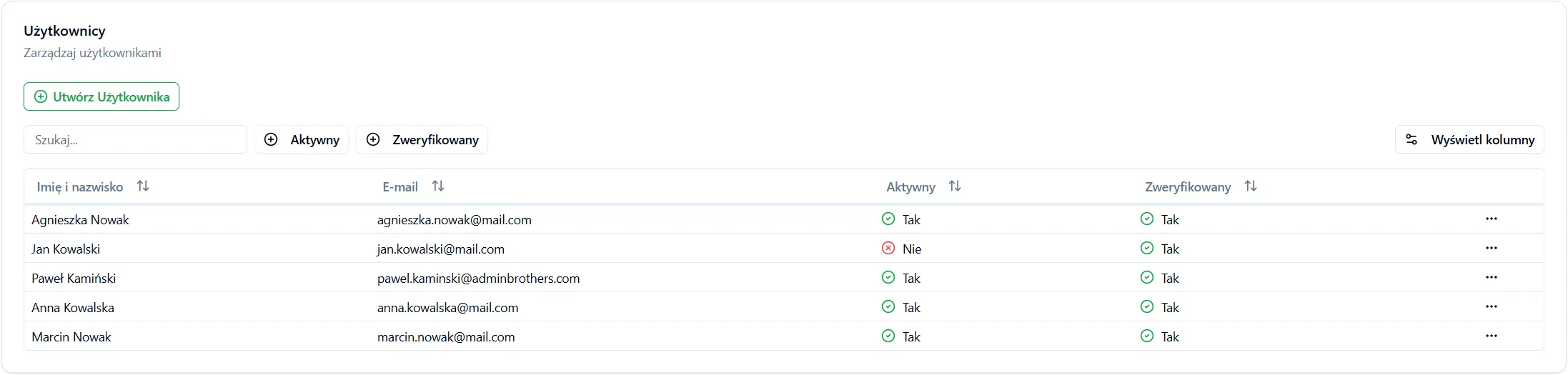
Actions Available for User
Section titled “Actions Available for User”- Password reset - sends an email with a password reset link.
- Account deactivation - blocks the user’s ability to log into the system.
Frequently Asked Questions
Section titled “Frequently Asked Questions”Who can manage users?
Only users with the Administrator role can create, edit, and deactivate accounts, as well as manage groups and permissions.
Can I assign a user to multiple organizational units?
Yes, a user can be assigned to multiple units, as long as they are not in a subordinate relationship. Details can be found in the Organizational Structure – Users documentation.
What should I do if a user cannot log in?
Check if the account is active and if the login credentials are correct. If necessary, reset the password. If the problem persists, contact the administrator.