
Service Configuration
Section Purpose:
This documentation describes how to manage services in the system – from creating new integrations, assigning permissions, to configuring printers for print services. This allows administrators to easily integrate external systems and services with the pharmacy portal.
Basic Information
Section titled “Basic Information”Services are external systems and services that integrate with the pharmacy portal. Each service can be one of two types:
- Print Service – service that manages printers and handles print jobs
- Integration – service integrating with the portal via API
Each service has unique identifiers (client_id and client_secret) enabling authentication and assigned permissions determining what operations it can perform.
Service Properties
Section titled “Service Properties”Each service has the following properties:
- System ID (Client ID) Required – unique service identifier in the system (system name)
- Friendly Name Required – name displayed in the interface
- Service Type Required – service type: Print Service or Integration
- Permissions Configurable – determines what operations the service can perform in the system
- Client Secret Confidential – key for service authentication and authorization
Sample Service List
Section titled “Sample Service List”| Client ID | Friendly Name | Service Type |
|---|---|---|
printer_service_001 | Print Service | Print Service |
pharmacy_integration | Wholesaler Integration | Integration |
lab_printer_service | Laboratory Printers | Print Service |
View in Application
Section titled “View in Application”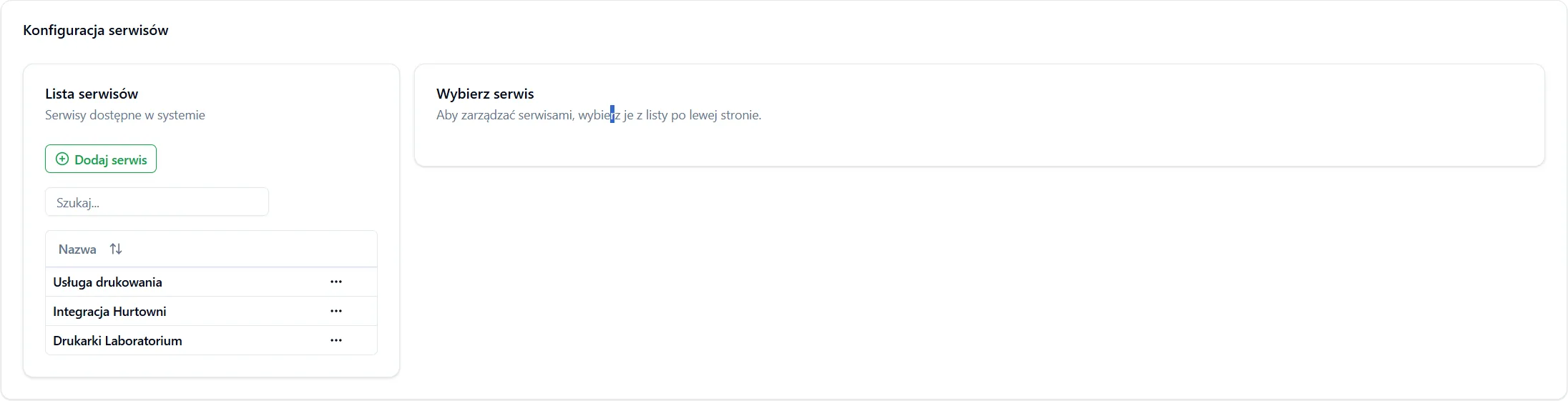
Creating a New Service
Section titled “Creating a New Service”Step by Step
Section titled “Step by Step”- Go to Configuration → Services section in the main menu.
- Click “Add service” button
- A form will be displayed with the following fields:
- System ID (Client ID) – provide unique service identifier (e.g.,
printer_service_001) - Friendly Name – provide name displayed in the system (e.g., “Print Service”)
- Service Type – select from list: Print Service or Integration
- Permissions – select permissions you want to assign to the service (as described below in Service Permissions section)
- System ID (Client ID) – provide unique service identifier (e.g.,
- Click “Save” button
Access Keys Dialog
Section titled “Access Keys Dialog”After successfully creating the service, a dialog appears containing:
- Client ID Public – unique service identifier
- Client Secret Private – authorization key (displayed only once!)
Important: Copy both identifiers to a secure location. Client secret will no longer be displayed in the interface – you can only regenerate it.
Service Details
Section titled “Service Details”For each service, a Details tab is available where you can view and manage its configuration.
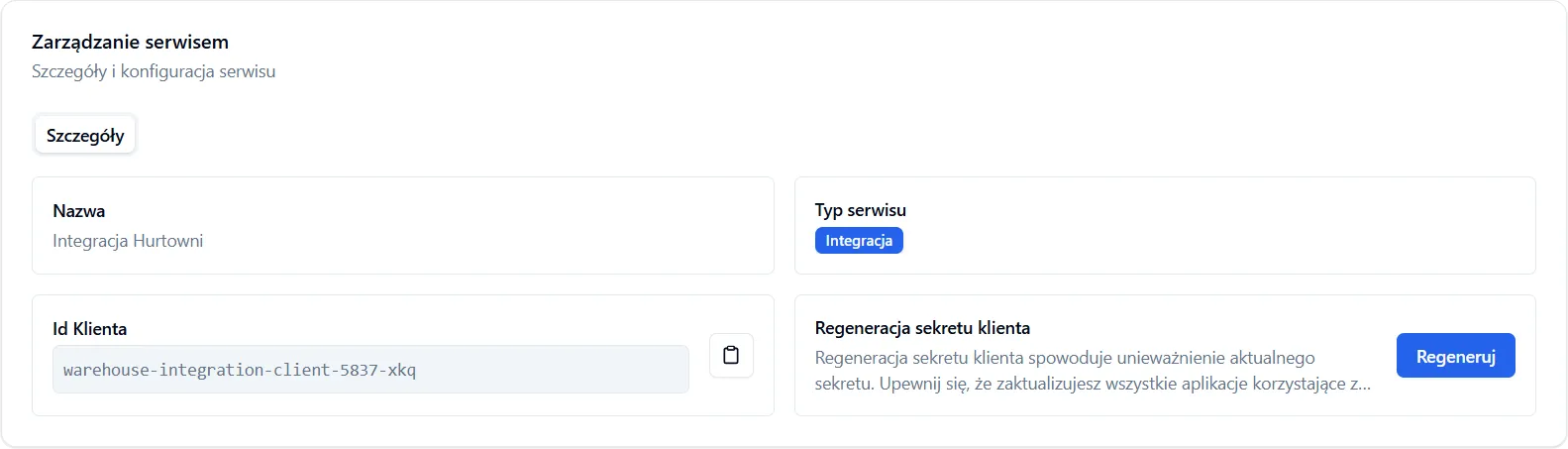
Information Available on Details Tab
Section titled “Information Available on Details Tab”- Friendly Name
- Service Type
- Client ID – unique identifier
- “Regenerate secret” button – enables generating a new authorization key Old secret will become invalid
Regenerating Client Secret
Section titled “Regenerating Client Secret”If you believe the client secret has been compromised or you want to change it:
- On the Details tab, click the “Regenerate secret” button.
- Confirm the action in the displayed confirmation dialog.
- New identifiers will appear – copy them.
- Important: The old secret will already be invalid – remember to update the external service configuration.
Service Permissions
Section titled “Service Permissions”Service permissions determine what operations it can perform in the system. Similar to user groups, each service has assigned permissions to various functions.
Managing Printers (for print services)
Section titled “Managing Printers (for print services)”If the service is type Print Service, an additional Printers tab is available where you can configure printers available for this service.
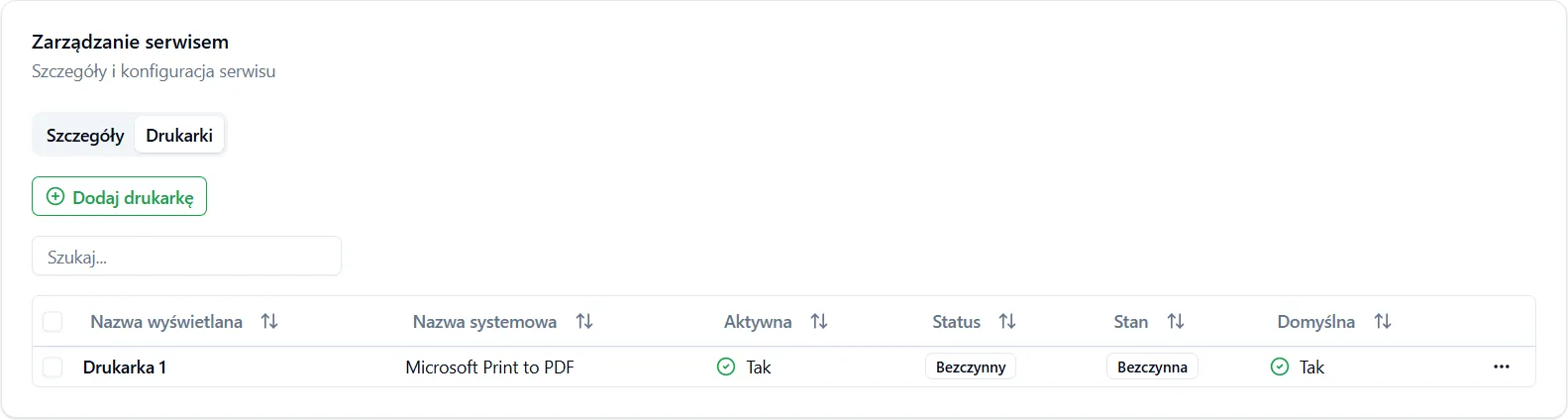
Viewing Available Printers
Section titled “Viewing Available Printers”- Go to Configuration → Services section.
- Select a Print Service type service from the list.
- Click the “Printers” tab.
- You’ll see a list of printers assigned to this service along with their status.
Adding a New Printer to Service
Section titled “Adding a New Printer to Service”- On the Printers tab, click the “Add printer” button
- A form appeared where you need to:
- Select printer from the list of available system printers
- Provide friendly name – name that will be displayed in the system (e.g., “Reception printer”, “Laboratory printer”)
- Click the “Add” button
Editing Printer
Section titled “Editing Printer”For each printer you can edit:
- Friendly name Editable – change the name displayed in the system
- Availability Toggle – set whether the printer is available in the system (enable/disable)
Important Information
Section titled “Important Information”-
Client secret is displayed only once – immediately after creating the service. Remember to copy it to a secure location. You can regenerate it later, but the old secret will become invalid.
-
Permission change is immediate – if you change service permissions, changes take effect immediately for all requests from this service.
-
Print service requires minimum permissions – assign the print service only permissions it needs. Usually permissions to view prescriptions and manage printers are sufficient.
-
Secret regeneration – always remember to update the configuration of the system using this service after regenerating the secret.
Frequently Asked Questions
Section titled “Frequently Asked Questions”Can I change service type after creation?
Service type is set during creation and cannot be changed. If you want to change the type, you must delete the old service and create a new one.
What should I do if I forget the client secret?
You cannot recover the secret – you can only regenerate it. Click the “Regenerate secret” button on the Details tab and copy the new secret.
Can I have multiple print services?
Yes – you can have multiple print services, each with its own printers and permissions. This is useful if you have printers in different locations.
What happens when I regenerate the secret?
The old secret immediately becomes invalid. All requests using the old secret will be rejected. Remember to quickly update the external service configuration.